
Linking your account
Sign in at /login with Discord or your Minecraft (Microsoft) account — or verify Minecraft with an in-game magic link. Linking both means one account shows your stats, ranks, supporter perks and tickets together. You can connect accounts yourself; only staff can disconnect one.
Your website account and your Minecraft account are linked so that one sign-in shows your whole HarvestSeason identity — stats, ranks, supporter perks, keys, and tickets — in one place. You never have to link to play, but it’s worth it to manage everything from the site.
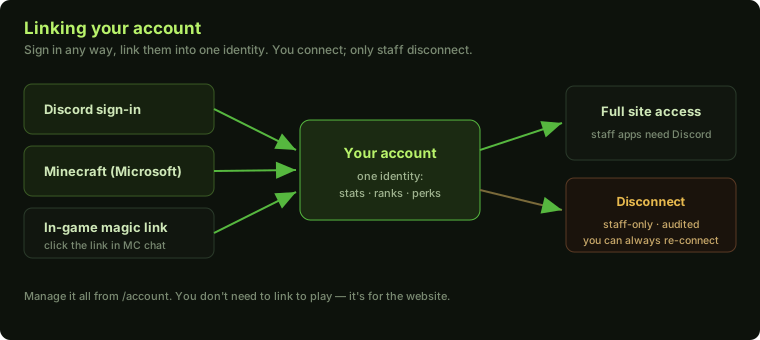
The ways to sign in
Head to /login and pick a method:
- Discord — sign in with your Discord account. This is the path you need for staff applications (staff must be reachable in the community Discord).
- Minecraft (Microsoft) — sign in with the Microsoft account that owns your copy of Minecraft. This verifies you really own the in-game name.
- In-game magic link — the manual option, and the one to use if Microsoft sign-in isn’t available
to you yet. From
/account, choose Confirm in-game: a clickable link appears in your Minecraft chat while you’re online — click it to verify the account is yours.
Why link both
A Minecraft-only sign-in can use almost the whole site. A Discord-only sign-in works too. But linking both to one account is the best experience:
- Your public profile, season stats, and rank all resolve to the same identity.
- Your supporter rank (bought while signed in one way) shows up no matter how you sign in.
- Staff can help you faster because your accounts are tied together.
The one thing that always needs Discord is staff applications — everything else works for a Minecraft-only account.
Connecting and disconnecting
- You connect. From
/accountyou can connect an additional account at any time (e.g. add Discord to a Minecraft sign-in, or vice-versa). - Only staff disconnect. For your safety, you can’t unlink an account yourself — that prevents someone who briefly gets into one of your accounts from quietly hijacking the link. Every link change is recorded, and you’re notified when one happens.
- Need a link changed? Open a ticket. Staff can disconnect a wrong or compromised link, and you then re-connect the correct account yourself.
Where to manage it
| Page | What it’s for |
|---|---|
/login | Sign in with Discord, Minecraft, or start the in-game link. |
/account | Your private hub — see linked accounts, connect another, and manage your appearance. |
/player/<name> | Anyone’s public, read-only profile (yours included). |
Related guides
- Linking Discord and Minecraft — the in-depth walkthrough of the in-game
/discord linkflow and what rank sync unlocks. - How to connect — getting onto the server in the first place, before you link anything.
What’s next
Make it yours: Your account & profile. Want the cosmetic extras a supporter rank adds? See Supporter ranks.
FAQ
Do I have to link anything to play?
No — linking is only for the website. You can play on the server without ever visiting the site. Linking just ties your website sign-in to your in-game identity so your stats, ranks and purchases all show up under one account.
What's the difference between signing in with Discord and with Minecraft?
Both get you into the site. Discord is required for staff applications (staff must be reachable in the Discord). A Minecraft-only sign-in can use everything else on the site. Linking both gives you the full picture under one account.
How do I verify my Minecraft account without Microsoft sign-in?
Use the in-game magic link. From /account choose "Confirm in-game", then click the link that appears in your Minecraft chat while you're online. That proves you own the account.
Can I unlink an account myself?
No. You can connect accounts yourself, but only staff can disconnect one. This protects you — it closes the door on someone hijacking or impersonating a link. If you need a link changed, open a ticket and staff will handle it.